
Run multiple Claude Code sessions at once
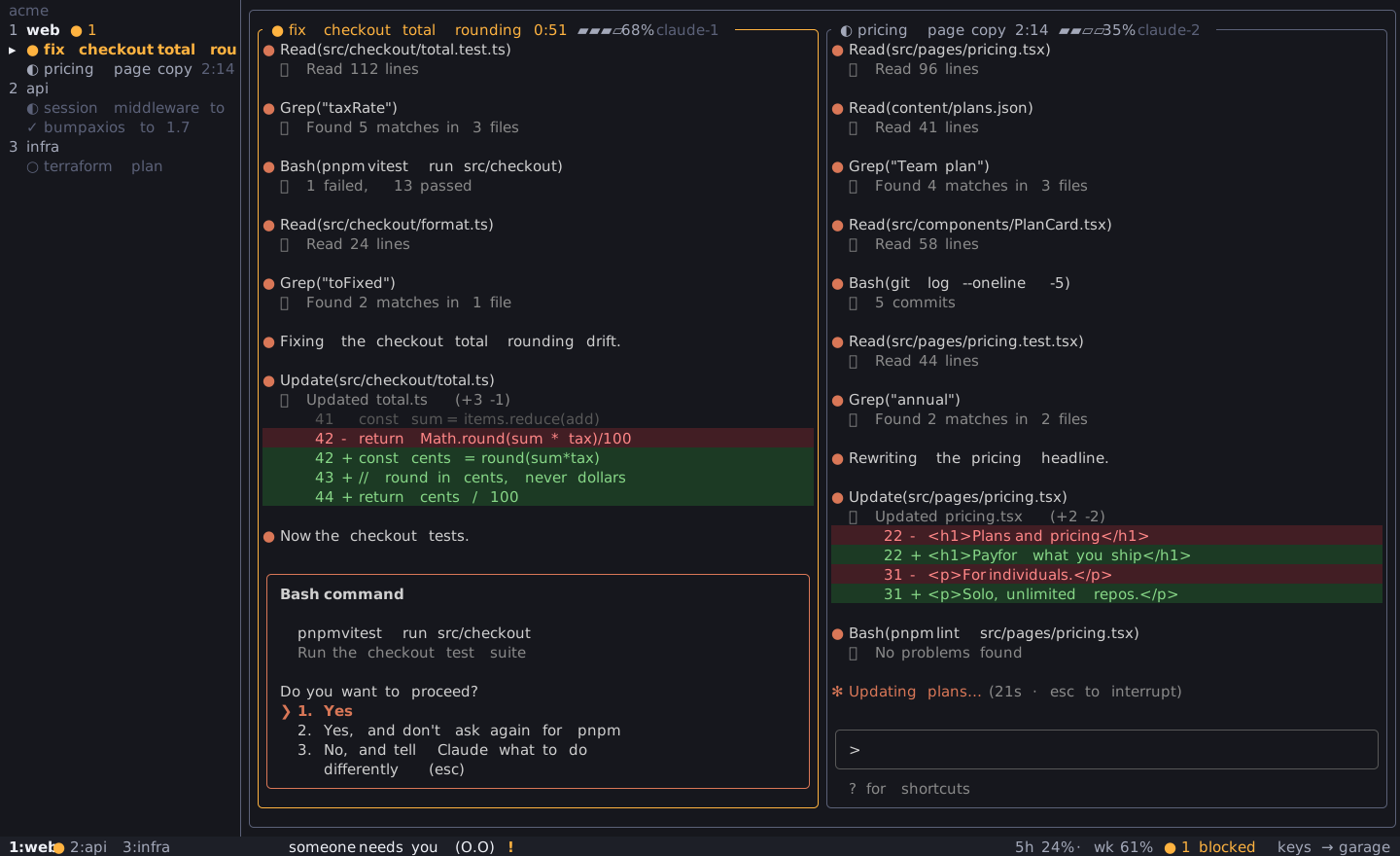
With many Claude Code sessions, the hard part is knowing which one waits for your answer. claude-garage marks that session amber and jumps to it when you press a. Sessions are grouped by project folder, and A lists every waiting session, longest wait first.
How do I run several sessions at once?
Section titled “How do I run several sessions at once?”- Add each project with
w. Switch between projects with1to9. - Start sessions with
n. Use one tile per task. - Work in one tile. Press
Ctrl+Gwhen you want to leave it. - Watch the rail and the strip. When a session turns amber, press
a. - Answer Claude. Press
Ctrl+Gwhen you are done. - Press
aagain for the next waiting session.
How do I know which session needs me?
Section titled “How do I know which session needs me?”Amber means one thing: Claude waits for your answer. garage uses amber for nothing else.
- The tile border and title turn amber.
- The rail row turns amber and shows how long it has waited.
- The project tab in the strip gets an amber dot.
- The built-in
alertsplugin plays a chime and, when no garage window is in view, shows a desktop banner. See Know when Claude Code needs you.
The rail never reorders itself. A waiting session shows in amber, with a count on its project, and keeps its place. So 1 to 9 always reach the same project. To change the order, press Shift+Up or Shift+Down on the focused project. garage saves the order.
Try it without installing: the browser tutorial simulates this exact wall, and the key reference lists every key.
How do I jump to the waiting session?
Section titled “How do I jump to the waiting session?”Press a to go to the session that has waited the longest. It works from any project. garage changes project and view if it must, and then it engages the tile. Your next keystroke goes straight to Claude.
For a permission prompt, this is two keys: a, then your answer. If no session waits, a goes to the newest finished session you have not seen. If there is none, it shows a short notice and does nothing.
How do I see every waiting session?
Section titled “How do I see every waiting session?”Press A to open the queue of all waiting sessions. The longest wait is at the top. Each row shows the session, the wait time, and Claude’s message when there is one.
jandkmove the selection.Enterjumps to the selected session, the same wayadoes.Esccloses the queue.
You can also click the waiting count in the strip.
How does claude-garage group projects?
Section titled “How does claude-garage group projects?”Projects that live in the same parent folder sit together in the rail. A faint label with the folder name sits above the group. For example et-backend and et-admin in elite-traders/ get an elite-traders label.
- If you also add the parent folder itself as a project, it leads the group.
- A waiting session does not move its group. The project shows an amber dot.
- A project with no neighbor gets no label.
- Project numbers
1to9do not change. Label rows have no number and ignore clicks.
How do I see what finished?
Section titled “How do I see what finished?”When Claude finishes, the glyph turns green ✓. After 2 minutes the green fades to grey. The glyph stays. The fade tells you what finished since you last looked, without asking for attention.
How do I split one project into views?
Section titled “How do I split one project into views?”Press d to move the focused session into its own view. Press d again to move it back. Press D to move it to another view. When a project has two or more views, a view bar shows above the grid. Press Tab to cycle views. A waiting session in any view still turns the project amber, and a finds it.
Related reading: alerts and banners, keep sessions alive after you close the terminal, why tmux owns your Claude Code sessions, and claude-garage vs one session at a time.